
Limit Orders
Last updated: 2026-03-12
Limit orders wait for a specific trigger price before executing. Use them when price matters more than immediate execution.
What Are Limit Orders?
Unlike market orders, limit orders stay pending until the trigger level is reached. Set the level, hold the line, and let the order wait.
Four Types of Limit Orders
- Take Profit: sell above your entry.
- Stop Loss: sell below your entry.
- Buy the Dip: buy below the current price.
- Buy: place a buy order that triggers when price moves up to your chosen level.
Setting Your Limit Order
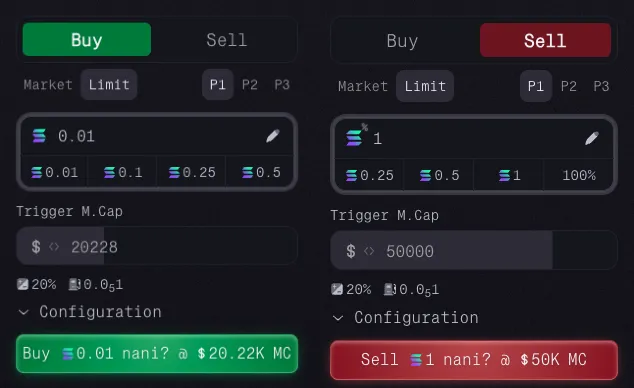
You can set the trigger price in three ways:
- Type the market cap value into the trigger input.
- Drag the
$label on the trigger input. - Drag the line on the TradingView chart when limit mode is active.
You also set the amount, slippage, and priority fee, just like a market order.
Managing Active Orders
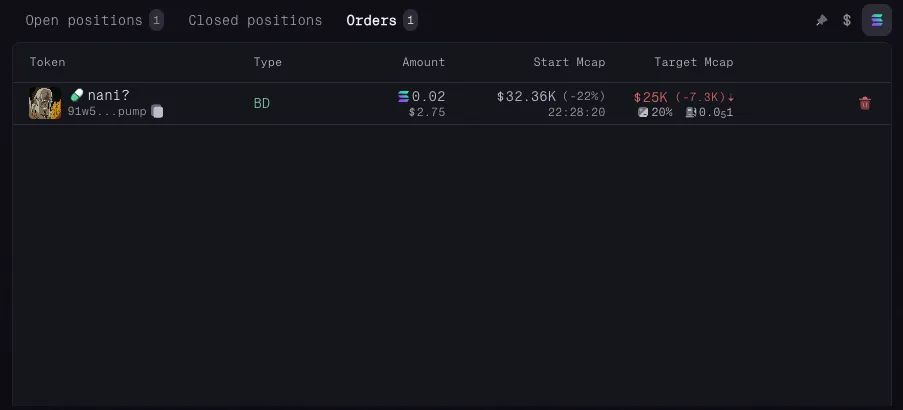
Active limit orders appear in the Orders tab, where you can:
- review pending orders,
- edit the target market cap,
- cancel orders you no longer want.
Visual Order Management
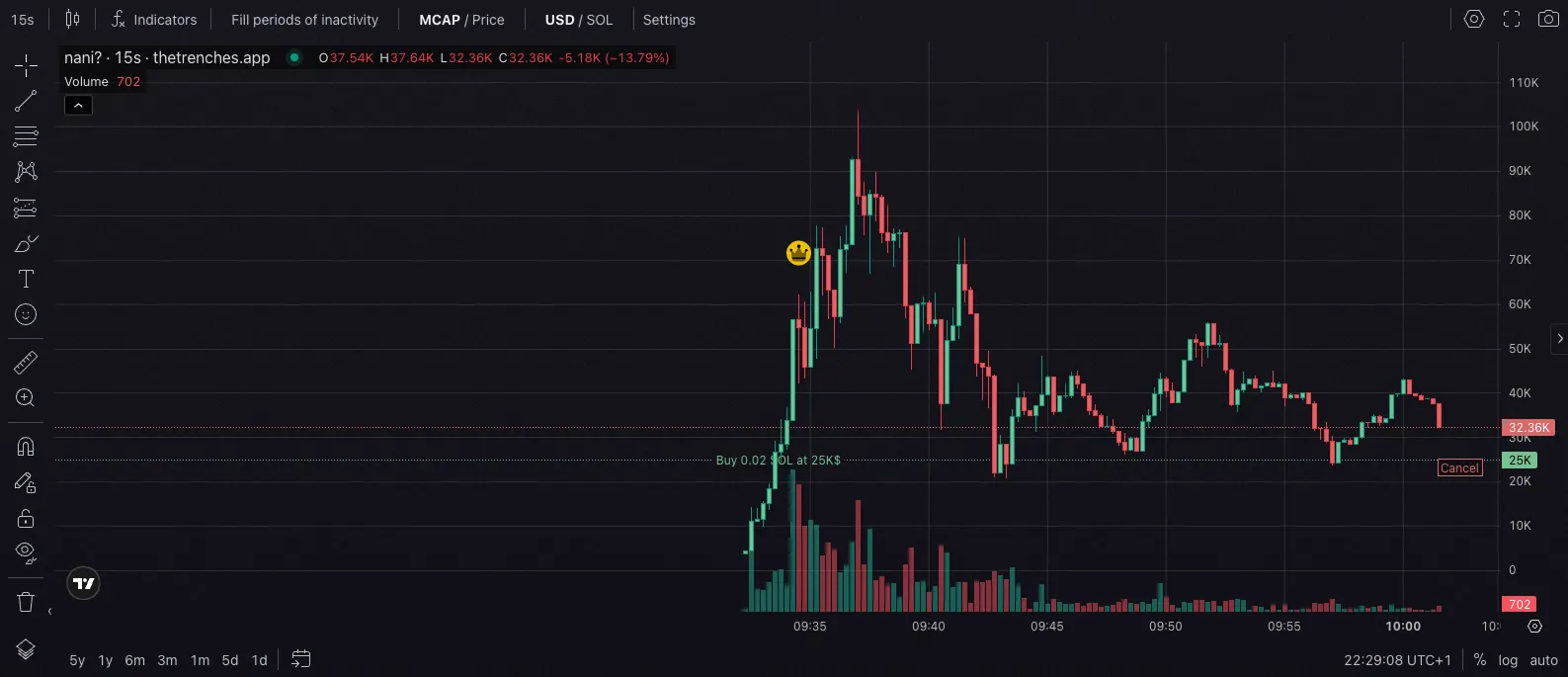
When a token has an active limit order, a line appears on the chart showing the trigger level. You can drag the line to adjust the order directly from the chart.
If you want a cleaner chart, you can hide these lines in Trading View settings.
Summary
Limit orders are useful when you already know the level you want. Set the trigger once, monitor it in the orders table, and adjust it from the chart if needed.